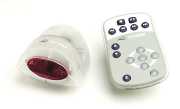
left is the emitter right is the
remote.
Using the Keyspan Remote Control for PowerPoint Presentations
|
|
|
left is the emitter right is the
remote.
|
The Keyspan Remote control is a small remote that mimics key strokes and special key commands that have been mapped to the buttons on the control. Its main use is to enable people using PowerPoint presentations to go through their presentations without being tethered to the podium computer’s keyboard. It can be quite useful for this but it does have some limitations: since it’s an infrared device there needs to be a direct line between the remote’s emitter and the sensor attached to the computer. This means that you will need to move the sensor so it is oriented towards the area where you intend to stand. Also there is a distance limitation of about 15 feet though if you are directly in front of the sensor you may be able to be farther away.
Preparations:
Before you are able to use the Keyspan remote you should setup the computer so that PowerPoint is on and your presentation is the open document. Once that is accomplished, you can begin using the remote.
The Buttons:
The main buttons that are useful for PowerPoint are the "play" button (the button on the upper part of the control with the right pointing arrow "> " on it) which activates the menu bar, the play "select" button (the button in the center of the four directional arrows), which is the equivalent of hitting the enter or return key on the keyboard, and the four arrow keys, which both allow you to go through the menus after you hit the stop button and go back and forth once in the PowerPoint presentation view. The "stop" button which is directly to the left of the "play" button will stop the slide show and go to the standard PowerPoint view
To use the keyspan: